Practical guides
Import a CAMT statement and check your reconciliations
Set up your bank account, import its XML statement, and check how transactions are matched to invoices and expenses.
The Gäld team · Published on
Get the right statement
Download a CAMT XML statement from your online banking. Gäld supports CAMT.053 and CAMT.054. Check the account, currency and period covered by the file.
For a file import, you choose the statement yourself. An automatic bank connection is a separate workflow.
Import the statement into Gäld
- In Banking, add the bank account with its IBAN and general ledger account if you have yet to set it up.
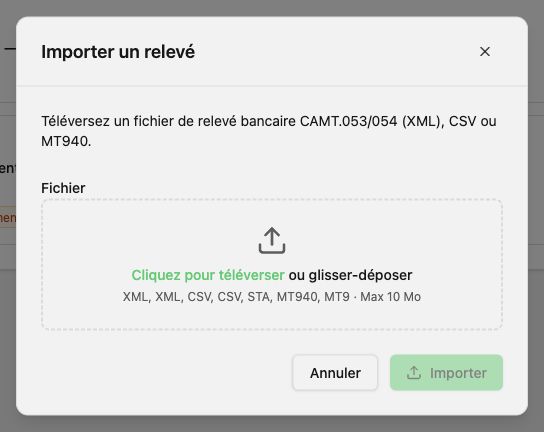
- Open Banking → Reconciliation, select the account, then click Import Statement and upload the XML file.
- After the import, open the transaction list and compare the period and amounts with your statement.
 Open full-size image (new tab)
Check each match
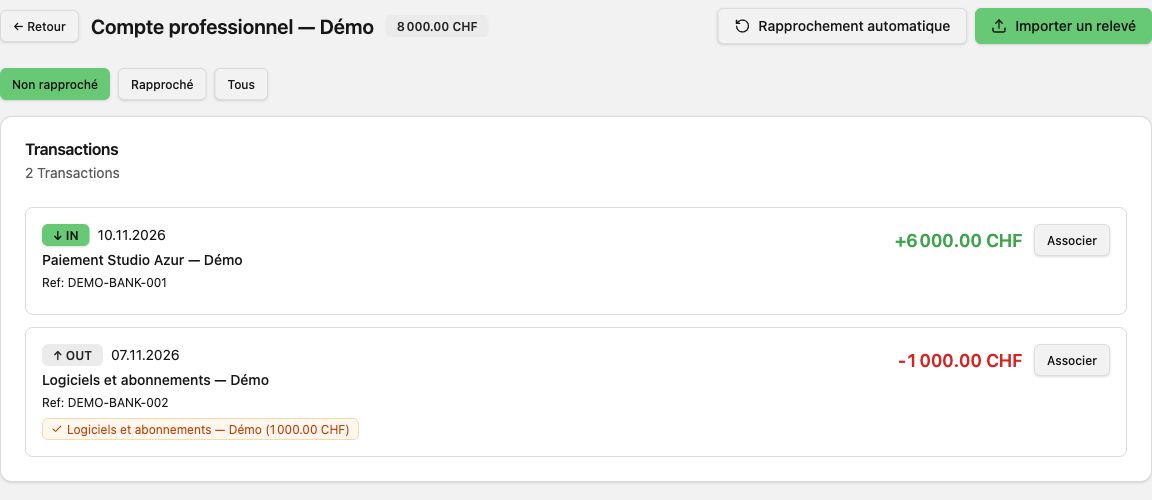
Reconciliation links a bank transaction to an invoice or expense. Check the reference, amount and document before confirming the match.
If none of the suggested matches is correct, find the document and reconcile it manually. Check the other details even when an invoice has a similar amount.
 Open full-size image (new tab)